


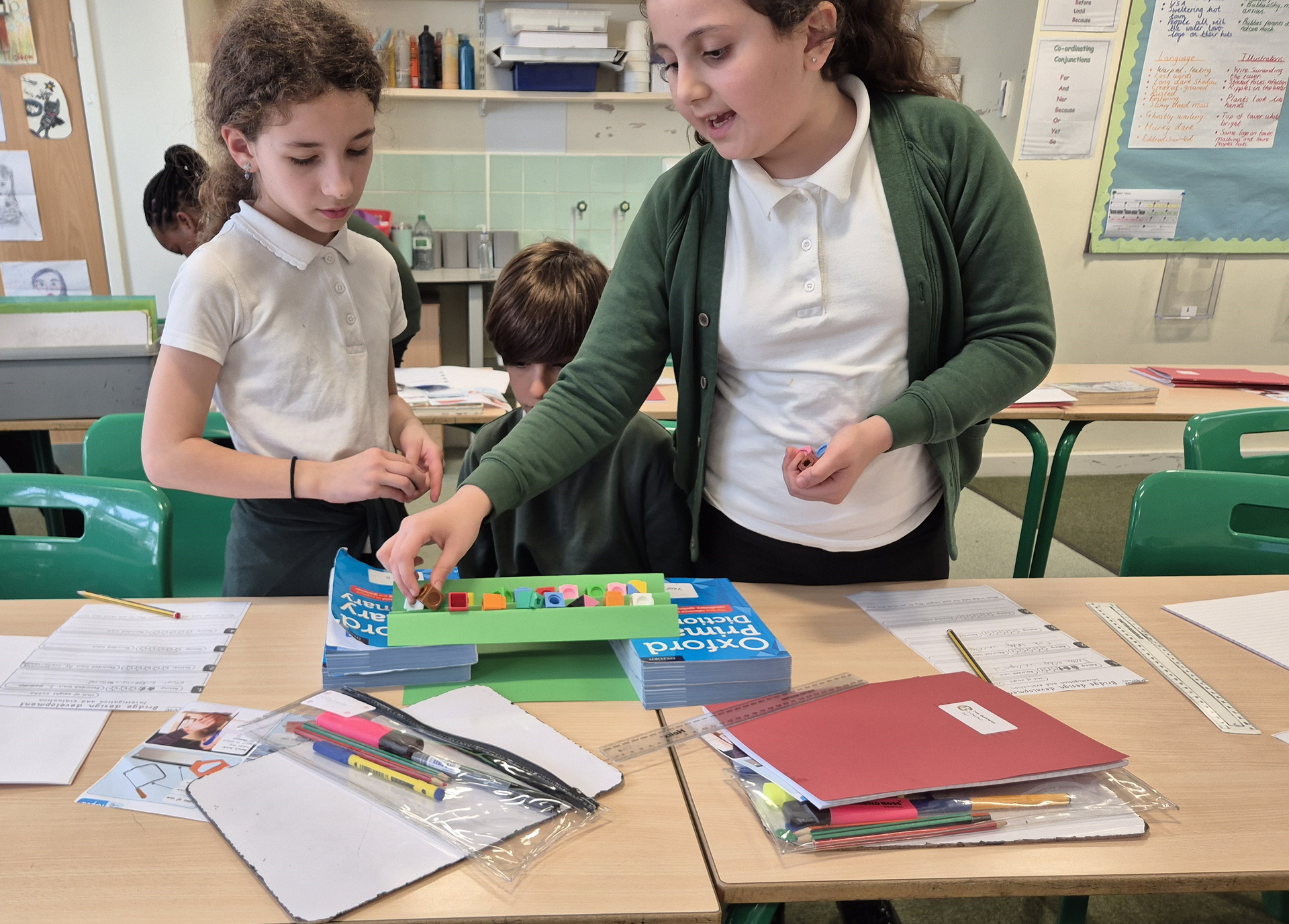

Welcome
Welcome to Cowley Hill Primary School website which has been designed to help keep parents informed and to give newcomers an introduction to our school, to our staff, our governors and to the children.
I hope our website will answer many of your questions about who we are and what we do. Should you have further queries, please telephone, email or arrange a visit to our school - you will be most welcome.
NURSERY - If you are looking for a Nursery place please call the school office, we currently have spaces for morning sessions and 30 hours.


Help - Adding External Calendars
Below you will find instructions on how to add calendars from different platforms:
Google Calendar
- 1. Open Google Calendar in your browser
- 2. Click the settings gear icon next to your calendar
- 3. Select "Settings and sharing"
- 4. Scroll down to "Access permissions" section
- 5. Copy the "Public URL to this calendar" link
- 6. Paste the link in the "Calendar link" field
https://calendar.google.com/calendar/embed?src=example@gmail.comOutlook Calendar
- 1. Open Outlook Calendar in your browser
- 2. Click "Share" next to your calendar
- 3. Select "Publish calendar"
- 4. Copy the "ICS" or "Web link"
- 5. Paste the link in the "Calendar link" field
https://outlook.live.com/calendar/action/view?id=exampleApple iCloud Calendar
- 1. Open iCloud Calendar in your browser
- 2. Click "Share" next to your calendar
- 3. Select "Public calendar"
- 4. Copy the "Public calendar" link
- 5. Paste the link in the "Calendar link" field
https://p123-calendars.icloud.com/published/2/exampleICS File
- 1. Find a link to an .ics file
- 2. The link must end with .ics
- 3. Paste the link in the "Calendar link" field
- 4. Example: https://example.com/calendar.ics
https://example.com/calendar.icsHelp - Adding External Calendars
Below you will find instructions on how to add calendars from different platforms:
Google Calendar
- 1. Open Google Calendar in your browser
- 2. Click the settings gear icon next to your calendar
- 3. Select "Settings and sharing"
- 4. Scroll down to "Access permissions" section
- 5. Copy the "Public URL to this calendar" link
- 6. Paste the link in the "Calendar link" field
https://calendar.google.com/calendar/embed?src=example@gmail.comOutlook Calendar
- 1. Open Outlook Calendar in your browser
- 2. Click "Share" next to your calendar
- 3. Select "Publish calendar"
- 4. Copy the "ICS" or "Web link"
- 5. Paste the link in the "Calendar link" field
https://outlook.live.com/calendar/action/view?id=exampleApple iCloud Calendar
- 1. Open iCloud Calendar in your browser
- 2. Click "Share" next to your calendar
- 3. Select "Public calendar"
- 4. Copy the "Public calendar" link
- 5. Paste the link in the "Calendar link" field
https://p123-calendars.icloud.com/published/2/exampleICS File
- 1. Find a link to an .ics file
- 2. The link must end with .ics
- 3. Paste the link in the "Calendar link" field
- 4. Example: https://example.com/calendar.ics
https://example.com/calendar.icsHelp - Adding External Calendars
Below you will find instructions on how to add calendars from different platforms:
Google Calendar
- 1. Open Google Calendar in your browser
- 2. Click the settings gear icon next to your calendar
- 3. Select "Settings and sharing"
- 4. Scroll down to "Access permissions" section
- 5. Copy the "Public URL to this calendar" link
- 6. Paste the link in the "Calendar link" field
https://calendar.google.com/calendar/embed?src=example@gmail.comOutlook Calendar
- 1. Open Outlook Calendar in your browser
- 2. Click "Share" next to your calendar
- 3. Select "Publish calendar"
- 4. Copy the "ICS" or "Web link"
- 5. Paste the link in the "Calendar link" field
https://outlook.live.com/calendar/action/view?id=exampleApple iCloud Calendar
- 1. Open iCloud Calendar in your browser
- 2. Click "Share" next to your calendar
- 3. Select "Public calendar"
- 4. Copy the "Public calendar" link
- 5. Paste the link in the "Calendar link" field
https://p123-calendars.icloud.com/published/2/exampleICS File
- 1. Find a link to an .ics file
- 2. The link must end with .ics
- 3. Paste the link in the "Calendar link" field
- 4. Example: https://example.com/calendar.ics
https://example.com/calendar.ics